Projects
HireNow Portal > Projects
User Story
As a recruiter of HireNow, I am able to create Projects so that I can group together campaigns and ensure only the right people have access to view campaigns and applications.
Applicable User Roles
List of roles that have access or can use this feature.
Recruitment Admin
Description
A Project in SkillsNow is collection of Campaigns which have been grouped together. You can select the project a campaign belongs to during Campaign Configuration
Once a project has been created, you can assign different recruitment teams to each of the projects. This controls who has visibility of the campaigns associated with the project. If a recruiter has not been assigned to a project, they will not be able to see any of the campaigns or applications from that project.
How To
Create and Edit Projects
To create a project, click on the 'Create Project' button to bring up the Project editor dialog.
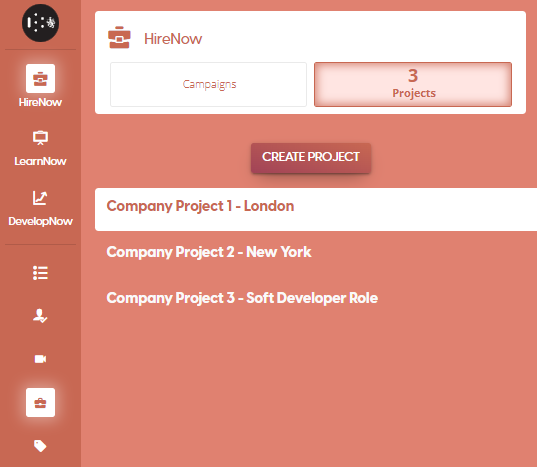

Once you have entered a valid project name, the save button will become enabled allowing you to save and create a new project. Project names must be unique and longer than 2 characters.
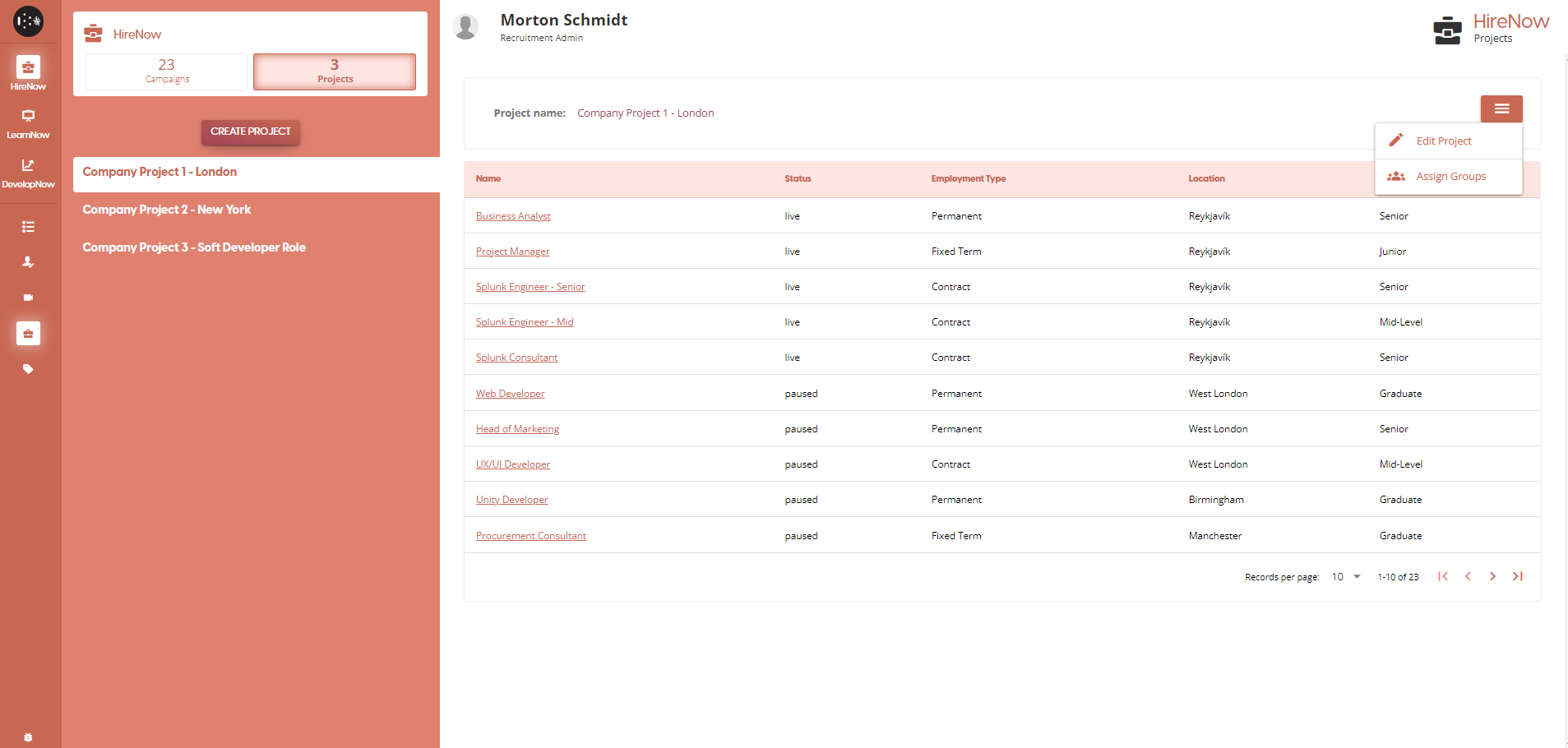
Once you have created a Project, you are able to edit it's name. Once you have selected a Project from the Projects page, click on the burger menu to open the Project editor dialog again. From here, you can update the name of the project.

Assign groups to projects
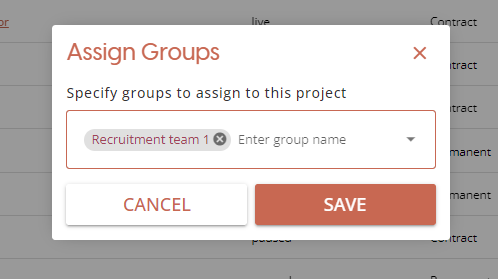
In order to give recruitment members access to the campaigns in a project, you must assign the Recruitment user group to the project. Click on the burger menu, then select the Assign Groups option to open the dialog.

This will open the Assign Groups dialog. From here you can enter a search term to look for a particular group, or you can click on the dropdown to view all recruitment groups. Once you select a group, it will be added to the assigned groups list.
To remove a group from being associated with a project, click on the 'x' on the group in the assigned groups list to remove the association.
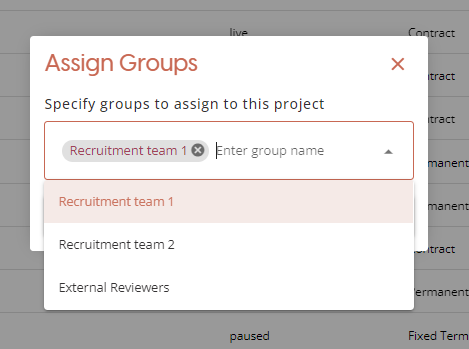
Once you are happy with you choices, click on the save button to confirm those changes. To close the dialog without saving any of the changes made, click on the Cancel button instead.
Archiving Projects
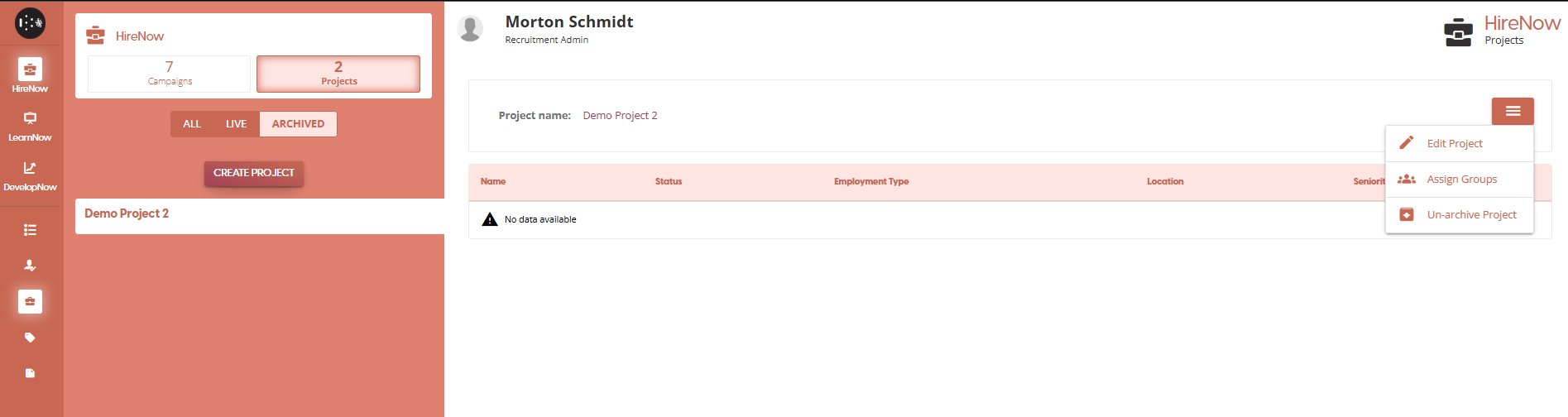
When you no longer want a project to appear on the Campaign Creation list, you can archive it. This will preserve the project and all its campaigns, but new campaigns will not be able to be part of that project.
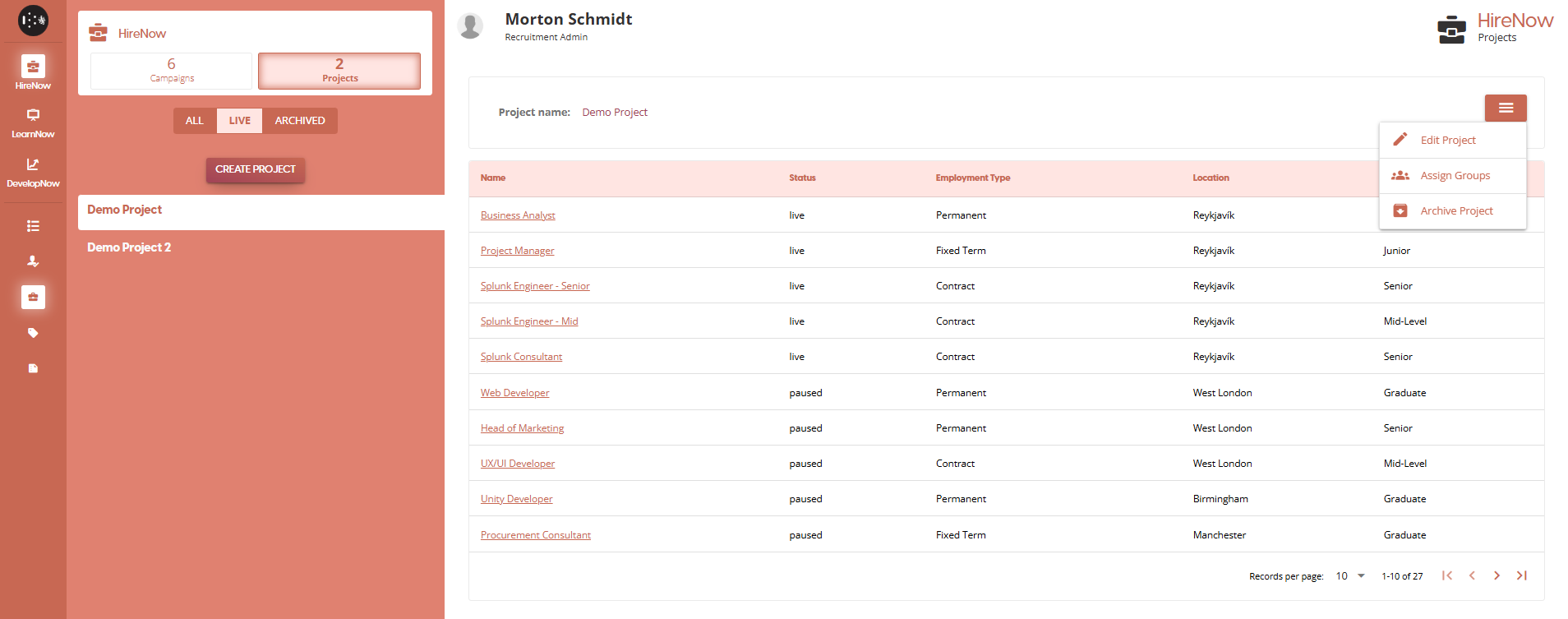
When viewing a Published Project, there is now an Archive Project option in the Burger Menu. After clicking on the option, the Project will be archived and will no longer ppear on the Projects list. Archiving a project has no affect on the campaigns within.
To un-archive a project, you need to first select an archived project. The burger menu will have a Un-archive Project option, which will update the status of the project back to Live. Again, this does not affect the status of any campaigns associated with the project.